


Google Maps has come a long way from being the basic navigation app it once was: Today, Google Maps contributes to travelers, commuters, and so much more who need invaluable local information. One of its nifty, if underrated skills is the ability to drop a pin anywhere. You can therefore creat custom maps, save destinations and instantly share them with friends. In this article, we’ll explain how to drop a pin on Google Maps using both mobile and desktop applications, as well as how to edit or delete pins, and offer some tips for getting the most out of them.

Before drilling down the steps, it might help to explain the significance of dropped pins. Google Maps already comes with so much information that it can be overwhelming if all you need is the location of a few places. Dropping a pin on the map turns this giant map into your personal space — you can save spots that you want to revisit, organize all of your favorite things and easily travel between the two. Businesses win too, as customers can locate the establishment without any confusion.
Looking to drop a pin on your all-but-obsolete map? If you’re out and about, your smartphone is the quickest way. The mobile edition of Google Maps has been crafted for rapid, on-the-fly actions and can help save you from typing in addresses again and again. Dropping a pin on your phone allows you to save a location in real time — clutch when you come across a great place that you want to remember.
Traveling or scoping destinations from your computer? On the desktop version of Google Maps, you have a bigger screen and more control. It’s great for mapping a handful of locations, or simply for planning your day. Here’s how to drop a pin from your desktop browser:
After the basics, you can become more of a dropped pin expert. Google Maps pins can be more than just a static marker — you can use them to navigate, plan and even measure distance. Some pro tips: Once you master these, you’ll be getting the most out of this feature:
A dropped pin is more than a point on a map; it’s a doorway to tools and experiences. From there, you can explore the surrounding area, plan trips near it and share it with others. Here’s what else you can do:
Explore the area. Pin point attractions, businesses or restaurants in your local area.
Pins you already saved may sometimes call for small adjustments. Editing pins comes in handy when you need to keep your map organized and up-to-date — especially if a location moves, closes or gets a new name.
When your map becomes crowded or you just don’t want a pin there any longer, it’s simple to remove it. Removing pins allows you to keep well-organized and makes sure your lists always remain effective.
Google Maps isn’t just used for personal purposes — it’s also one of the most valuable tools in a small business owner’s too kit for local marketing. “ The only accurate information a business would have is around the address or contact details, but that’s about it,” says Johnson.“ And why that’s important to a business, extending beyond search to our overall data ecosystem — which our maps are built on top of by definition anyway — is because ultimately well-managed listings strengthens their location findability and drives customers through their front doors. With a good plan in place, you can also extend your ranking in Google’s local search results.
Use Google Maps Marketing Services. Partner with a trusted SEO company India to rank higher, acquire new customers, and present the best you on the web.
It’s a kind of atom-sized feature in Google Maps: Dropping a tiny virtual file (a pin) on a packed beach gives you the ability to connect actual, real-world experiences with our digital maps. If you’re a traveler, commuter or business owner, learning how to utilize this feature can make your life a little more convenient. And by learning how to drop, save, edit and delete pins in that map, you’ll turn Google Maps into your own customized navigation assistant.
And though you can’t tap out multiple pins simultaneously on the default map view, you can add multiple locations to a list or use Google My Maps to build a custom map with as many pins as you’d like.
Dropped pins are temporary until you save them. After you save them to a list in your Google account, they’ll be there as long as you want them (though you can delete all or any of the items at any time).
Tap or click on the pin, and then tap or click “Share” or “Copy Link.” Shoot it off in an email, a text message, through WhatsApp or Facebook Messenger — the recipient of the message can open it directly in Google Maps.
Yes. Open your saved pins, tap or click the pin and then tap or click “Edit.” You can rename it if you want, describe it or label the map to keep them organized.
If you’ve got an offline map of the area downloaded, you can still drop a pin. But some features — such as the real-time directions, reviews or sharing, for instance — won’t be accessible until you’re connected again.

Gaurav Madan, Founder and CEO of Autus Digital Agency, is a pioneering figure in digital marketing with experience of 20+ years. His expertise revolutionizes online marketing strategies and leverages digital platforms for business growth. Gaurav’s consumer-centric approach and strategic vision propel diverse industries to position online presence and dominate.


Instagram carousel posts have become one of the most effective content formats for increasing engagement, improving reach, and delivering more value to followers. Whether you are a creator, influencer, marketer, or business owner, carousel posts allow you to share multiple images and videos within a single post. However, many users discover after publishing that the […]
.....
The modern digital advertising ecosystem has evolved significantly, and businesses now rely heavily on data-driven advertising systems like Google Ads to achieve scalable growth. This guide provides a structured, informational breakdown of how to build smarter, performance-oriented campaigns designed to improve ROI, optimize targeting, and maximize conversions across competitive industries. The focus is on practical […]
.....
Search engine optimization has evolved far beyond rankings and traffic numbers. In 2026, businesses are investing heavily in SEO because organic visibility directly impacts revenue, lead generation, brand authority, and long-term digital growth. However, one question still dominates boardrooms, marketing meetings, and client discussions: How do you actually measure SEO ROI? SEO ROI, or return […]
.....
SEO Companies in the USA Search engine optimization has become one of the most critical digital marketing channels for businesses aiming to grow online visibility and revenue. In the USA, SEO companies play a major role in helping brands improve rankings, attract qualified traffic, and convert visitors into customers. With search algorithms becoming more advanced […]
.....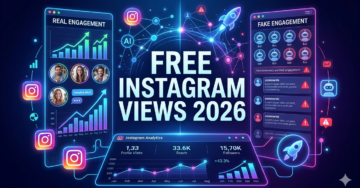
In 2026, short-form video content has become one of the most powerful drivers of growth on Instagram. It plays a central role in personal branding, business marketing, and influencer development. Today, video views are no longer treated as a simple vanity metric—they are a key indicator of content reach, algorithm performance, and audience interest. Whether […]
.....
Snapchat is one of the most widely used social media platforms for sharing short-form photos, videos, and disappearing content known as “Stories.” Unlike traditional social networks, Snapchat is built around temporary content that automatically disappears after 24 hours. This unique system has made it extremely popular, but it has also created strong user curiosity around […]
.....
Content has become one of the most important factors for digital marketing in the modern era. If organizations want to stay relevant and gain attention from potential customers through the Internet, then they have to develop their blogs, web pages, social media content, emails, and SEO articles to the highest level. Organizations that consistently produce […]
.....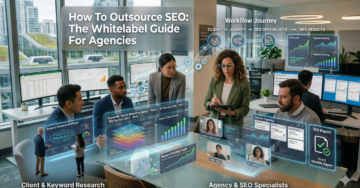
There has been an enormous increase in the demand for SEO services in recent times because companies have realized that search engine rankings play a crucial role in their ability to generate more sales and lead conversions. The growing pressure on digital marketing agencies to offer effective SEO services stems from this realization by various […]
.....
Search engine optimization has become one of the most important digital growth channels for modern businesses. Whether it is a startup trying to establish market presence, an eCommerce brand looking to increase product sales, or a service-based company focused on generating qualified leads, SEO plays a major role in improving visibility, credibility, and long-term business […]
.....
Today, lead generation is considered to be one of the crucial factors behind the growth of many companies. The current market environment is highly competitive, and attracting clients becomes increasingly difficult and costly each year. In other words, companies do not only aim to get visits to their websites or likes on their pages. Instead, […]
.....
SEO has evolved into one of the most complex digital growth systems in modern marketing. It is no longer limited to ranking websites on Google through keywords and backlinks. SEO by 2026 includes traditional search engines, AI-generated answer systems, and semantic knowledge networks that understand user intent, not just search queries. This transformation has changed […]
.....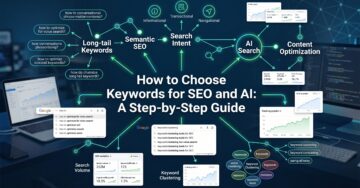
Keyword research is always one of the most crucial aspects of search engine optimization. But with the advent of AI in search, the keyword strategy approach of businesses and marketers has evolved. Search engines don’t care about exact matches of keywords anymore. Today’s algorithms are able to comprehend context, user intent, semantic relationships, and conversational […]
.....
SEO has rapidly changed. In the past, SEO was about improving rankings on the big search engines using the use of keywords and backlinks, among other elements,s to improve visibility on the Google search engine. But that is no longer the case today. As AI-based search engines such as Google AI Overview and Search Generative […]
.....
US Client Case Study: 312% Organic Growth with Autus Digital Search engine optimisation (SEO) is no longer a nice-to-have in today’s digital economy; it’s the lifeblood of service-based businesses. The “Yellow Pages” technology is over for agencies that do HVAC, plumbing, and electrical work. The first web page of Google is in which corporations fight […]
.....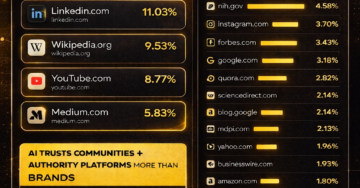
The way people discover information is changing fast. More users are now asking AI tools questions instead of typing every search into Google, and that shift is changing how brands need to think about visibility. If you want your content to appear in AI answers, you need more than traditional SEO. You need content that […]
.....
In today’s visually driven digital landscape, where images convey information faster than text, Google image search emerges as an indispensable tool. This feature empowers users to query the internet using pictures rather than keywords, revolutionizing how we discover, verify, and leverage visual content. From academic researchers tracing historical artifacts to marketers sourcing high-quality visuals for […]
.....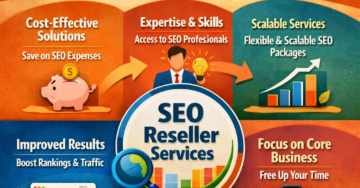
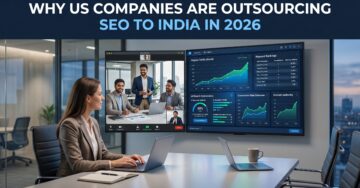
Did you know that companies that outsource their SEO gigs save nearly 30% of costs as compared to handling an in-house team? SEO is a powerful tool but not every business has the expertise of handling it in-house. That’s why hiring an expert SEO reseller in India is worthwhile. It can give you a return […]
.....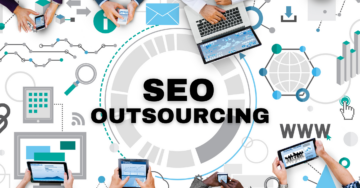
In today’s highly competitive digital landscape, businesses understand the importance of Search Engine Optimization (SEO) in driving online visibility, generating leads, and increasing revenue. However, building and maintaining an in-house SEO team can be expensive and resource-intensive. This is why many companies are turning to outsource SEO companies that offer high-quality services at a more […]
.....
Hey! If you’re scrolling this in 2026 (maybe sipping chai in Delhi like me right now 😄), you’re probably wondering the same thing tons of business owners are: Should I build my own in-house SEO team or just outsource SEO to a solid company—especially one in India? SEO keeps evolving with AI updates, voice search, […]
.....
Did you know that the HVAC industry is expected to reach $241.75 billion by 2031? With the increasing dependency on HVAC units, the industry is growing massively. And, with numerous HVAC contractors in the market, reaching your target audience is the main challenge. Picture this: someone in your region searches for HVAC installation services online […]
.....


